
How to add multiple locations in Google Business Profile is essential for businesses operating from more than one branch, office, or service center.
If you operate restaurants, clinics, retail stores, franchises, or service offices in different cities, adding and managing each location correctly on Google Maps helps you appear in local searches and attract customers near every branch.
In this guide, you will learn how to add multiple locations properly, avoid common mistakes, and manage all your business listings from one dashboard.
If you are still struggling with visibility, read why a service area business may not be showing on Google Maps and how to fix it.
If your rankings dropped suddenly, check why your business ranking dropped on Google Maps and what actions can recover visibility.
You should also review how to optimize your Google Business Profile for higher ranking before adding new locations.
Table of Contents
What Does Multiple Locations Mean in Google Business Profile?
Multiple locations mean that your business operates from more than one physical address or service hub, and each location needs its own verified Google Business Profile listing.
Each branch or office appears separately on Google Maps, allowing customers to find the nearest location when searching for your services.
If you are adding new branches but your listings are not visible, read why a verified business is not showing on Google Maps and how to fix it.

Who Should Add Multiple Locations on Google Maps?
Any business with more than one customer-serving location should create separate Google Business Profile listings for each branch.
- Restaurants with multiple outlets
- Clinics or hospitals with different branches
- Retail chains and showrooms
- Coaching centers and institutes
- Service companies with offices in different cities
When you add multiple locations in Google Business Profile correctly, each branch can rank separately in its own local area.

How to Manage Multiple Locations from One Dashboard
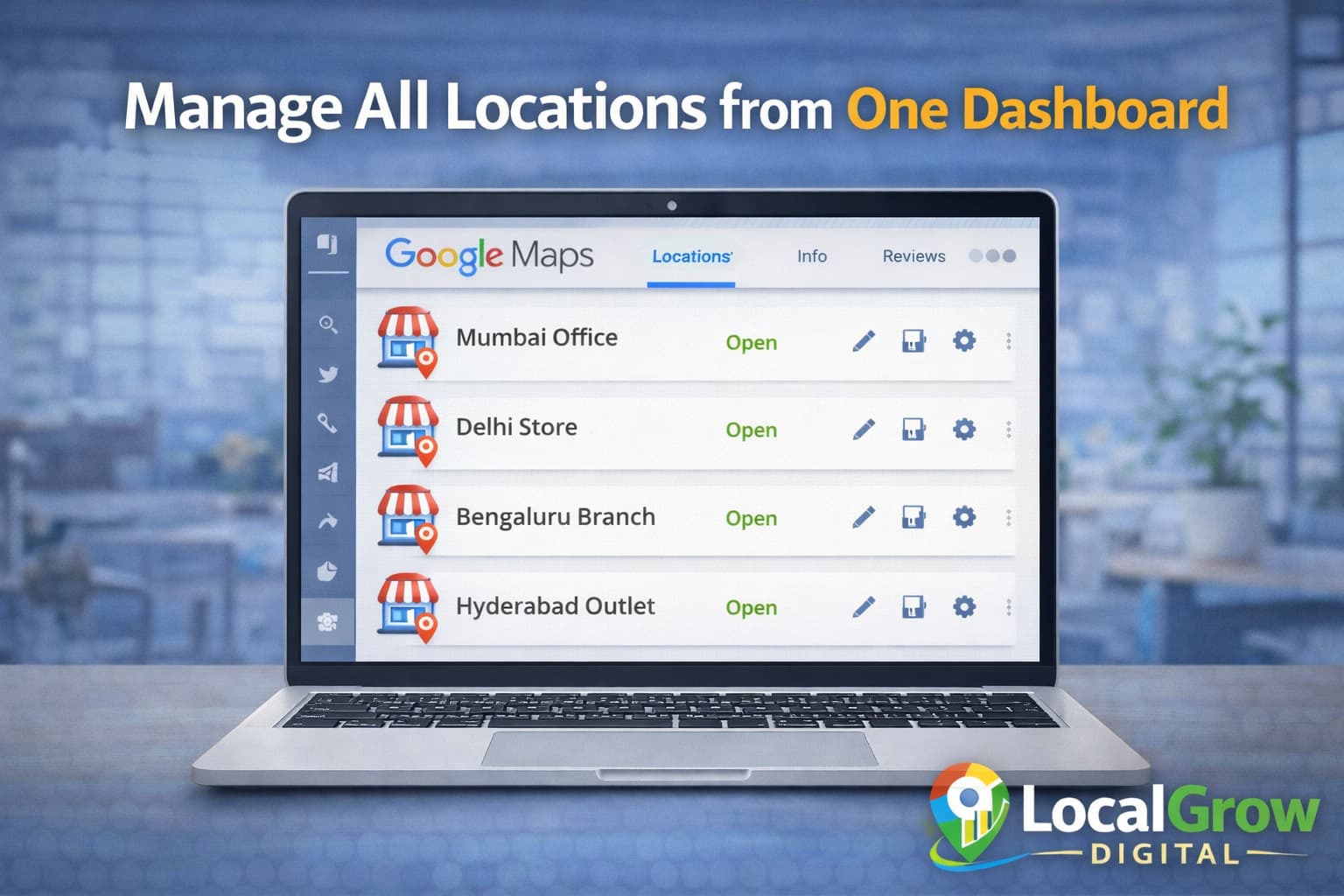
Google provides a Location Manager inside Google Business Profile that allows you to manage many locations under one account.
From this dashboard, you can update hours, upload photos, respond to reviews, and track performance for every location without logging into each profile separately.
- Centralized business management
- Bulk updates for business hours
- Easier verification process
- Faster support handling
How Verification Works for Multiple Business Locations
Each business location must be verified separately, even if all branches belong to the same company. Google uses verification to confirm that every listed address is real and operational.
According to Google’s official business profile guidelines, each physical business location must be represented accurately and verified individually.
Verification methods may include postcard, phone, email, or video verification depending on location and business category. Delays in verification can prevent new branches from appearing in local searches.
- Each branch needs separate verification
- Verification methods may differ by city
- Incomplete profiles delay approval
- Frequent edits can reset verification
If verification fails, you should also check what to do when Google Business Profile verification is not working.
Wrong vs Correct Way to Add Multiple Locations
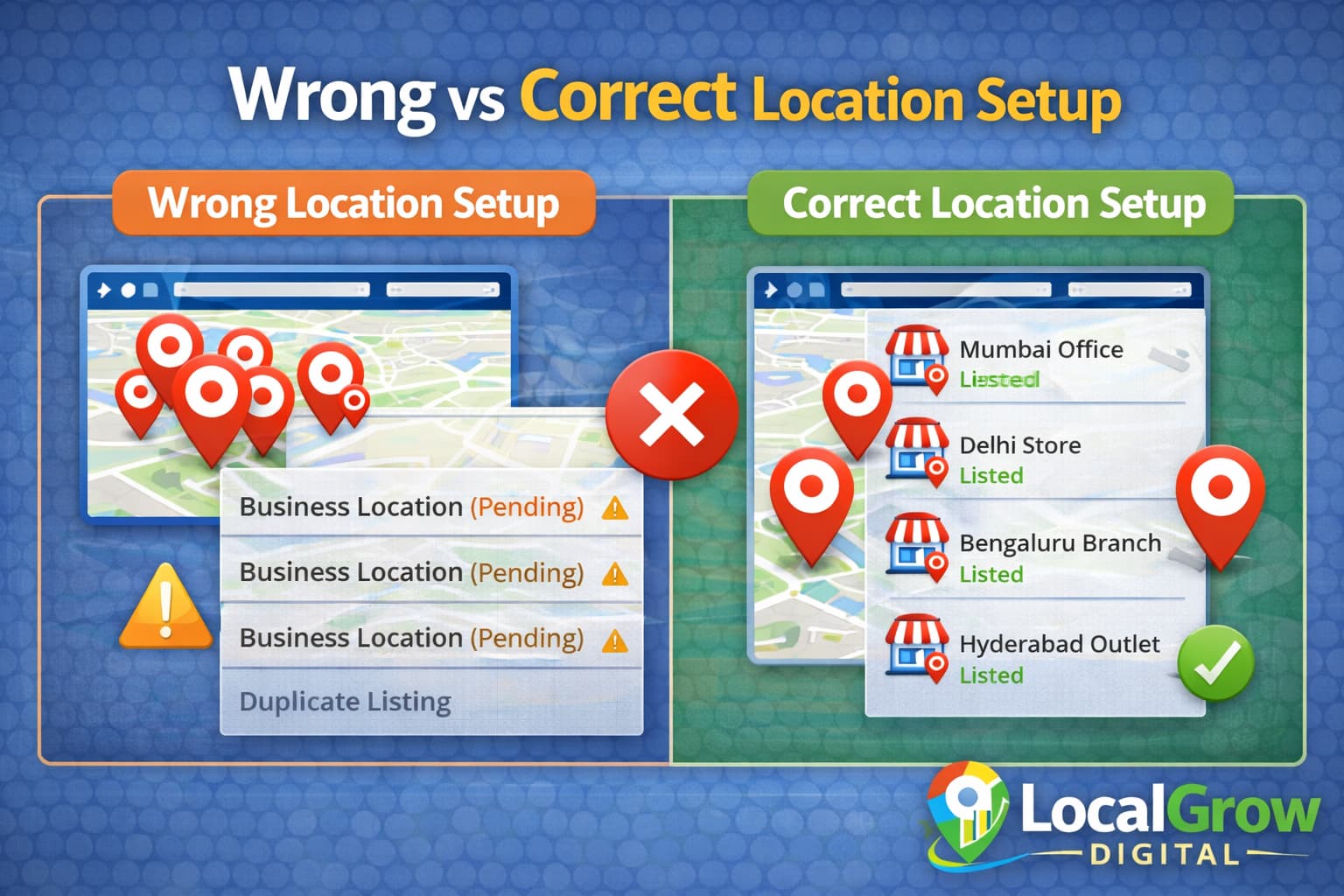
Many businesses make mistakes by creating duplicate listings or using the same address for multiple branches, which can lead to suspensions or ranking drops.
Wrong Way
- Using same phone number for all locations
- Creating fake addresses
- Copy-pasting business names
- Not verifying each branch
Correct Way
- Unique address per location
- Separate verification for each branch
- Proper business categories
- Accurate contact information
Step-by-Step Guide to Add Multiple Locations in Google Business Profile
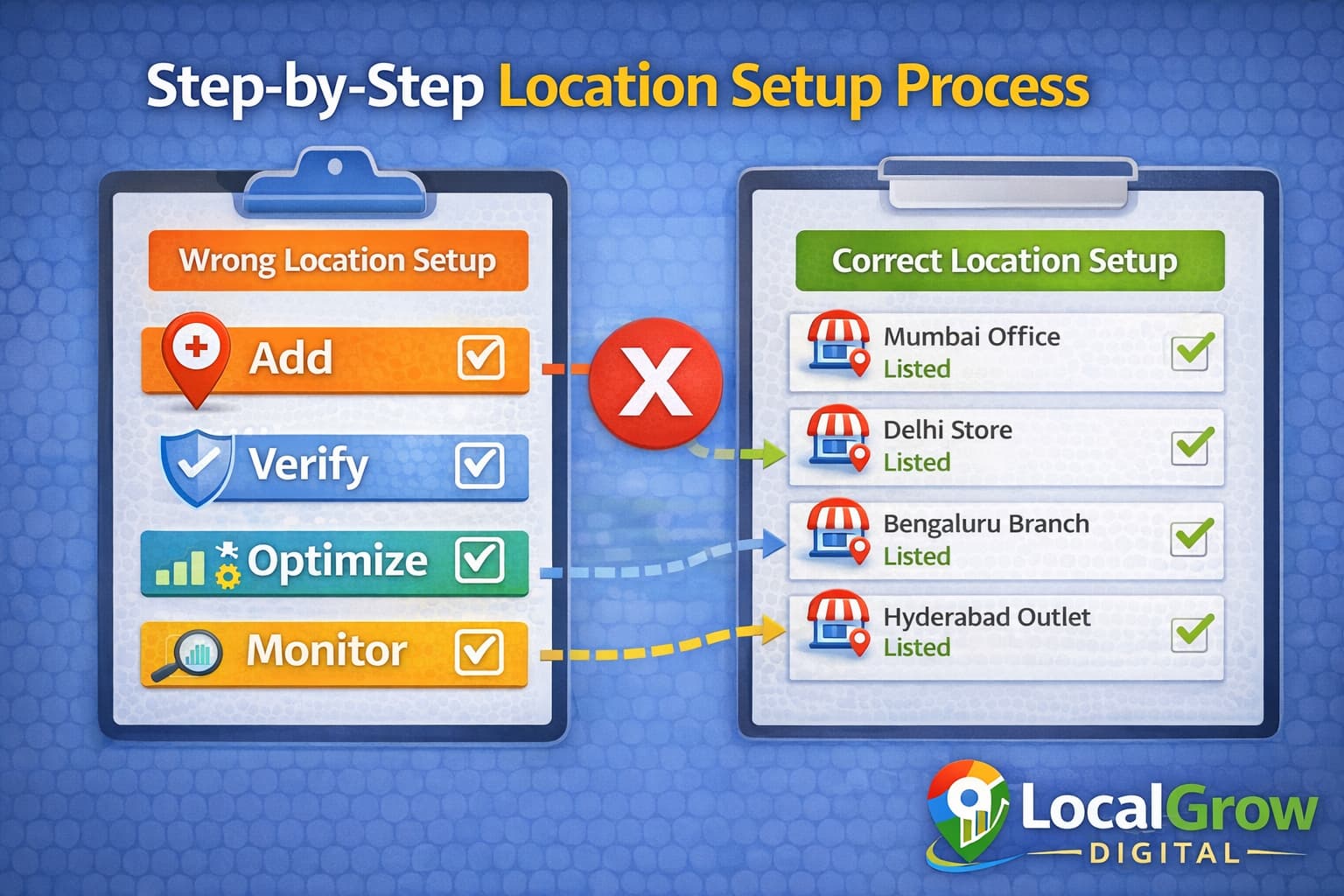
- Log in to your Google Business Profile account
- Open Location Manager
- Click “Add Business” or “Add Location”
- Enter correct address and contact details
- Choose accurate business category
- Submit for verification
- Optimize profile after approval
To protect your profiles, learn how to avoid Google Business Profile suspension and maintain compliance.
How Multiple Locations Improve Local SEO and Visibility
Each verified location gives your business a chance to appear in local searches near that area, increasing total impressions and customer inquiries.
- Higher local search coverage
- More chances to appear in map pack
- Better brand trust signals
- More customer reviews per area
You can further improve performance by following advanced Google Business Profile optimization techniques.
Common Problems When Adding Multiple Locations
Google may reject or delay approval of new locations if information appears suspicious or inconsistent.
- Duplicate addresses
- Incomplete business details
- Suspicious verification signals
- Policy violations

How Multiple Locations Generate More Customer Leads
Each verified location increases your chances of receiving calls, direction requests, and website visits from nearby customers.
- More phone inquiries
- Higher foot traffic
- Increased website visits
- Stronger brand authority

Our Google Business Profile setup service helps businesses correctly add multiple locations, complete verification, and optimize each branch for better ranking on Google Maps.
How to Scale Your Business Locations Without Getting Suspended
Adding many locations too quickly or using incorrect address details can trigger Google’s spam filters. Businesses should follow a structured expansion strategy to protect their profiles.
Using real addresses, proper signage, and consistent business information across platforms reduces suspension risk.
- Add locations gradually
- Use real physical addresses only
- Maintain consistent branding
- Avoid keyword stuffing in names
Businesses that properly add multiple locations in Google Business Profile usually see better visibility across multiple cities.
Frequently Asked Questions
Can I add multiple locations under one Google account?
Yes, Google Business Profile Location Manager allows you to manage all locations under one account.
Do all locations need separate verification?
Yes, each location must be verified individually to appear on Google Maps.
Can service businesses add multiple locations?
Yes, service area businesses can add multiple operational hubs if they meet Google guidelines.
Will adding more locations improve ranking?
Each location can rank separately, increasing total local visibility and customer reach.
Can I bulk upload business locations?
Yes, Google supports bulk uploads for businesses with many locations using spreadsheets.
What if Google rejects my new location?
Rejections usually occur due to address or category issues and can be fixed by correcting details.
Is it safe to use same phone number for all branches?
It is better to use location-specific numbers to improve trust and ranking accuracy.
How long does verification take for multiple locations?
Verification time varies by region and method but usually takes a few days to a few weeks.
Can I change address after verification?
Yes, but major address changes may trigger re-verification.
Do franchises need separate profiles?
Yes, each franchise outlet should have its own Google Business Profile listing.
Can agencies manage multiple business locations?
Yes, agencies can manage profiles using delegated access inside Location Manager.
Is professional help recommended for multi-location setup?
Professional help reduces rejection risk and ensures proper optimization from the start.